
Quick start
Ready to use in under 5 minutes.
Prerequisites
- Microsoft 365 account (Business or Enterprise)
- Admin consent must have been granted (→ Admin onboarding)
- A modern browser
Sign-in
1. Open the dashboard
https://teamsdashboard.com/app/
2. Sign in with Microsoft
Click Sign in with Microsoft and choose your account.
3. Done
After a successful sign-in, all users with a Teams license are loaded automatically.
Note: Before employees can sign in, an administrator enables the organization once – via the link from the onboarding email (→ Admin onboarding) – and signs the data processing agreement in the customer portal. After that every user can sign in.
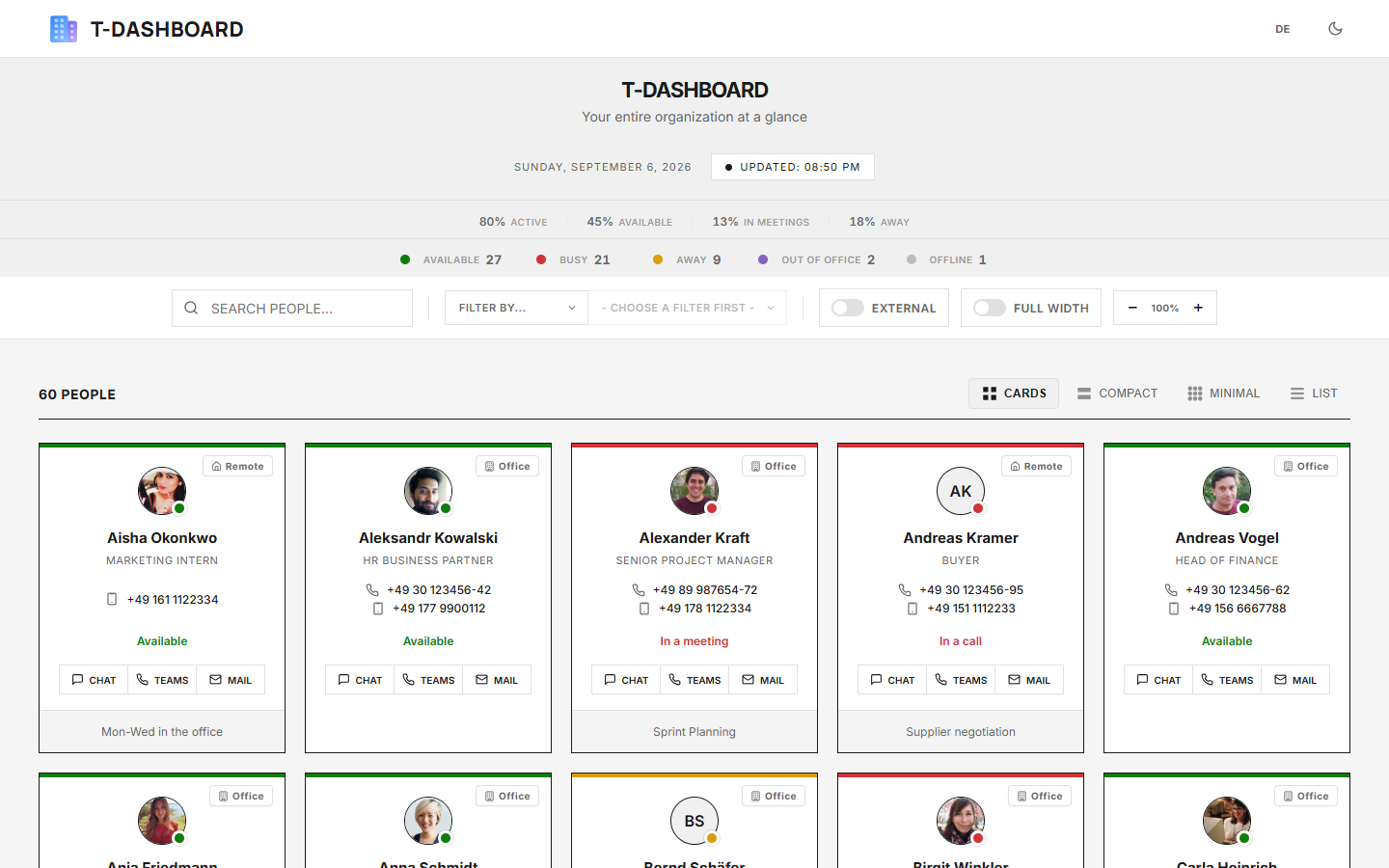 The dashboard after sign-in, cards view
First steps
Right after signing in you can:
- Search – type into the search box
- Filter – click the status colors in the statistics bar
- Smart filter – choose “Filter by…” and a value
- Switch views – cards, compact, minimal, or list
- Switch theme – light/dark in the header
- Zoom – enlarge or shrink the view with +/-
Problems?
If sign-in does not work:
- Check whether admin consent has been granted
- Clear the browser cache (Ctrl+Shift+Del)
- Contact your IT administrator