
Trial, purchase, and cancellation
Everything around license and billing runs in self-service. Here is what happens when.
Trial
- 14 days free, no credit card, with your entire organization.
- Start at teamsdashboard.com/en/trial with a Microsoft 365 account of your organization. The consent link from the confirmation email is valid for 7 days – after that, simply restart the trial.
- The 14 days begin with activation: with the first sign-in of an administrator to the customer portal (or the first opening of the app after consent), not with the click on “Try”.
- Reminders by email to the contact address: 14 days and 3 days before expiry and on the expiry date.
- After expiry the app shows “Access ended”. The customer portal stays open – upgrade there with one click; all settings are preserved.
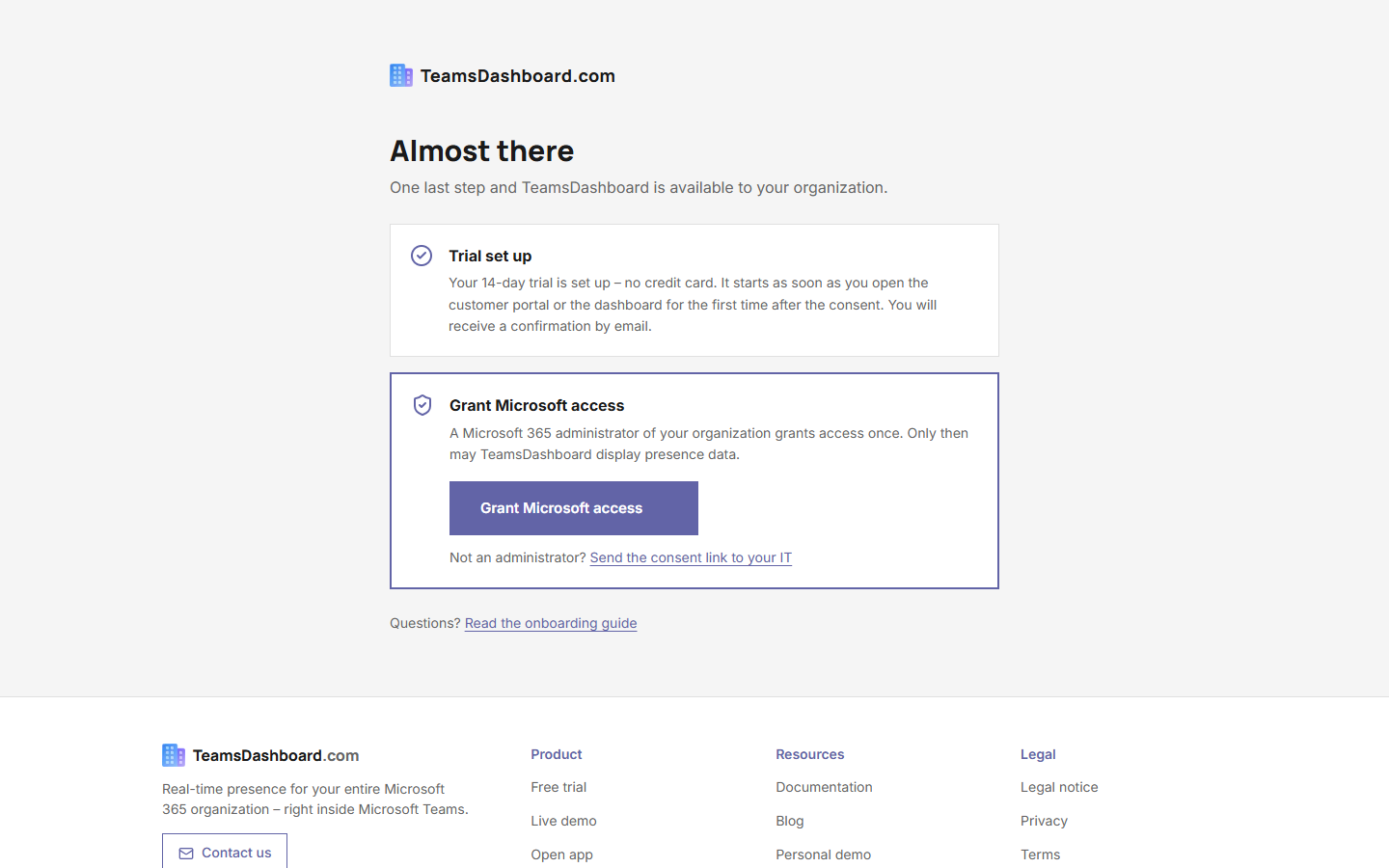 After starting the trial: consent by an administrator
Buying the standard license
- €4.25 per user per month, plus VAT, all features included.
- Two ways: from the trial in the customer portal (Billing → Upgrade now) or directly on the pricing page. In both cases you set the number of users in the checkout step.
- Payment by credit card or SEPA direct debit through Stripe. You receive a confirmation by email for every payment; receipts and invoices are in the Stripe customer portal (Billing tab). Enter a VAT ID for reverse charge in the checkout step.
- You confirm the terms and conditions in the checkout step and the data processing agreement in the customer portal. The German versions are legally binding; English courtesy translations are available at /en/terms and /en/dpa.
- Purchase by invoice can be requested via the pricing page. You receive a quote; after the order, onboarding runs like the trial via a consent link.
Number of users
You license the people with a Teams license who are allowed to use the dashboard. If you set an access group in the customer portal under Groups, only its members count; people who are only displayed in the dashboard do not need a license. Without an access group, all Teams users in your organization count.
The booked number of users is a soft limit: if more people are allowed to use the dashboard than licensed, it shows a notice but does not lock anyone out. Adjust the number of users in the customer portal (subscription customers under Billing → Stripe customer portal, invoice customers via Change user count).
Cancelling and renewing
- Subscription customers cancel at any time in the customer portal under Billing → Stripe customer portal. The cancellation takes effect at the end of the current billing period.
- Invoice customers send a renewal request from the Billing tab; reminders come 14 and 3 days before expiry.
- After the contract ends, settings, groups, branding, and portal access are kept for 90 days; if you come back within that time, everything is still there. After that we delete them automatically. The contract ends at the end of the last paid or agreed period.
- We keep the record of the data processing agreement for the statutory periods. Download the PDF in the Contract tab before the contract ends if you want to file it yourself.
Frequently asked questions
Do I lose settings when upgrading? No. Groups, branding, and the Teams package remain unchanged; the dashboard is unlocked again immediately after the checkout step.
What happens if a payment fails? You receive an email with a link to the customer portal to update the payment method. Access remains during the grace period; only a definitively failed payment ends the subscription.
Can I come back after cancelling? Yes – via the pricing page with the same Microsoft 365 account. Your organization is recognized; within 90 days after the contract ends, all settings are still there.