
Features
All features at a glance.
Live status
The presence status updates continuously and automatically, without reloading. For very large organizations the interval adapts automatically to stay within the limits of the Microsoft Graph API.
| Status | Color | Meaning |
|---|---|---|
| Available | Green | Online and reachable |
| Busy | Red | In a meeting, on a call, presenting |
| Do not disturb | Red | Does not want to be disturbed |
| Away | Yellow | Briefly away or inactive for a while |
| Out of office | Purple | Out of office is active |
| Offline | Gray | Not signed in |
Status message: If a user has set a message in Teams (e.g. “On vacation until Jan 15”), it is displayed.
Search
The search box filters users in real time. It searches:
- Name (first and last name)
- Email address
- Job title
- Department
- Office and company
- Work location (office, remote, on the road)
- Status message
- Phone numbers (landline and mobile)
The search is case-insensitive.
Filters
Status filter
In the statistics bar (green, red, yellow, purple, gray dots) you can click a status to filter by it.
Multi-select: Click further statuses to combine them (e.g. “Available” + “Away”).
Smart filter
With the “Filter by…” dropdowns you can filter precisely:
- Department – e.g. “Marketing”, “Sales”
- Job title – e.g. “Developer”, “Manager”
- Office – e.g. “Munich”, “Berlin”
- Company – for multi-company setups
- Work location – office, remote, or on the road
The smart filter automatically groups the display by the selected field.
External users
With the External toggle you can show or hide guest users. They are marked with an “EXT” badge.
Filter chips
Active filters are shown as chips. Click the × to remove a filter, or RESET to clear all of them.
Views
| View | Description | Ideal for |
|---|---|---|
| Cards | Large tiles with profile picture, all contact details, and quick actions | Detail view, small teams |
| Compact | Rows with all important information | Medium-sized teams, more overview |
| Minimal | Narrow rows, name and status only | Large teams, maximum overview |
| List | Classic table with columns | Data-oriented users |
Switch via the icons at the top right of the content area. The selection is saved in the browser.
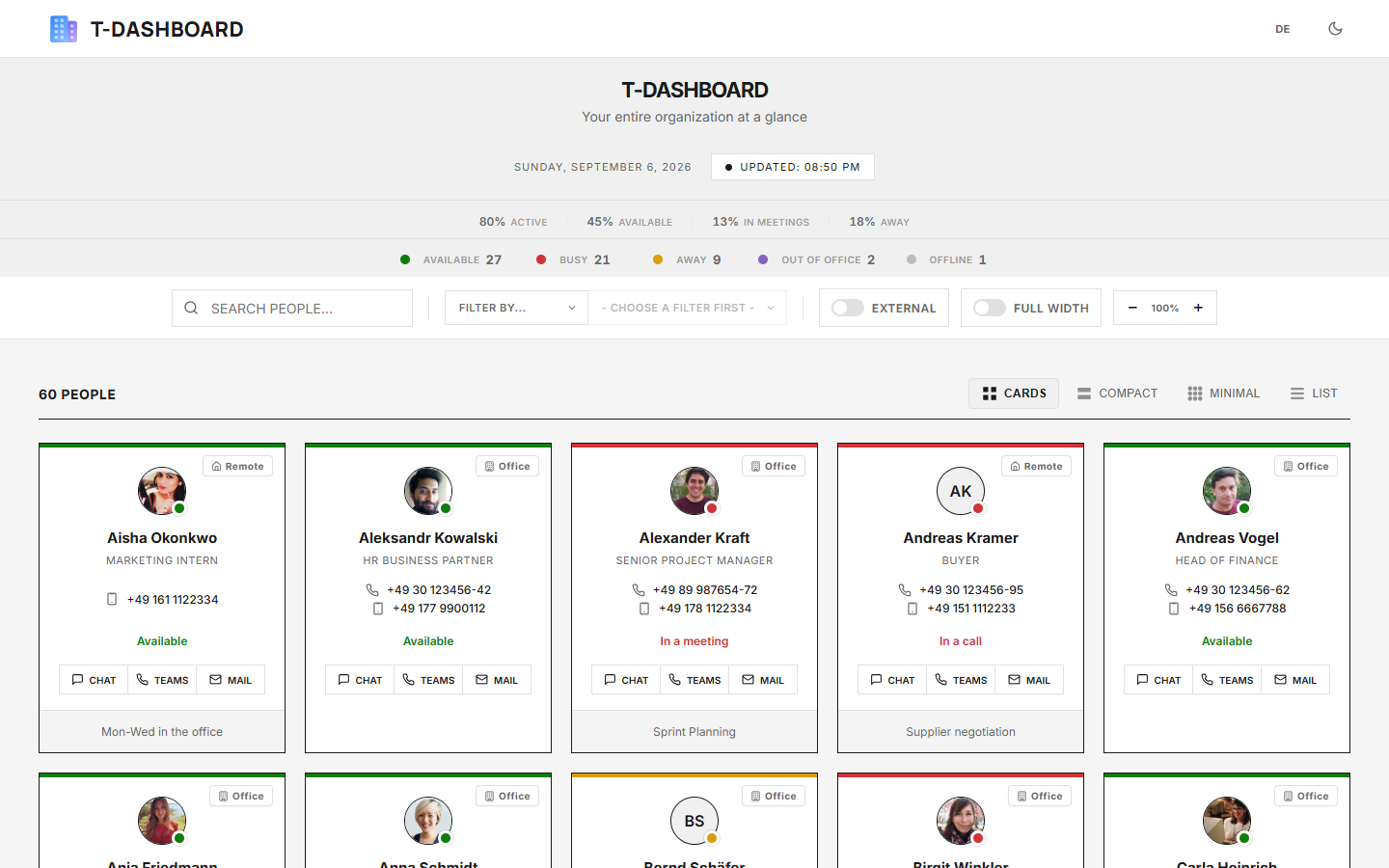 Cards view
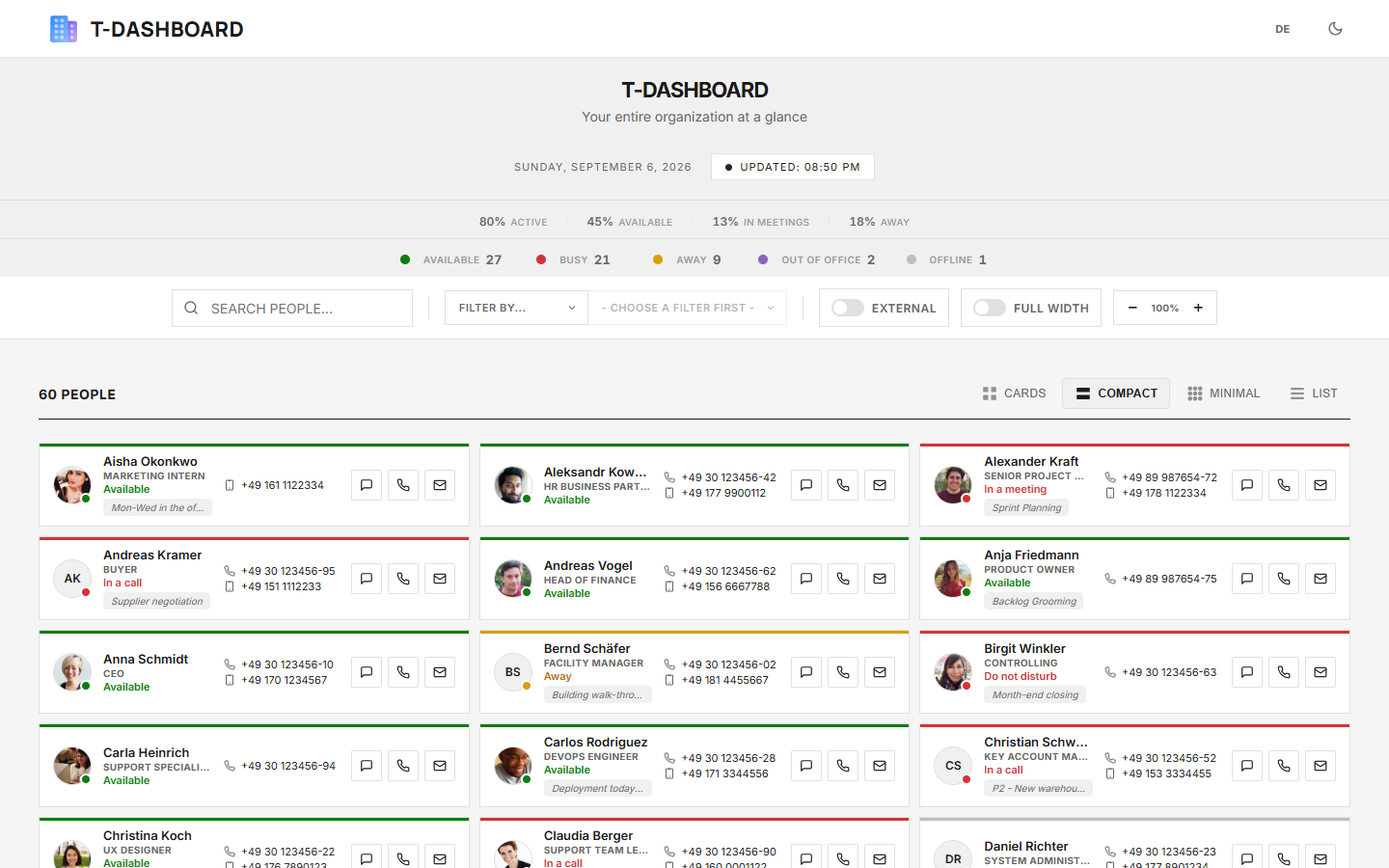 Compact view
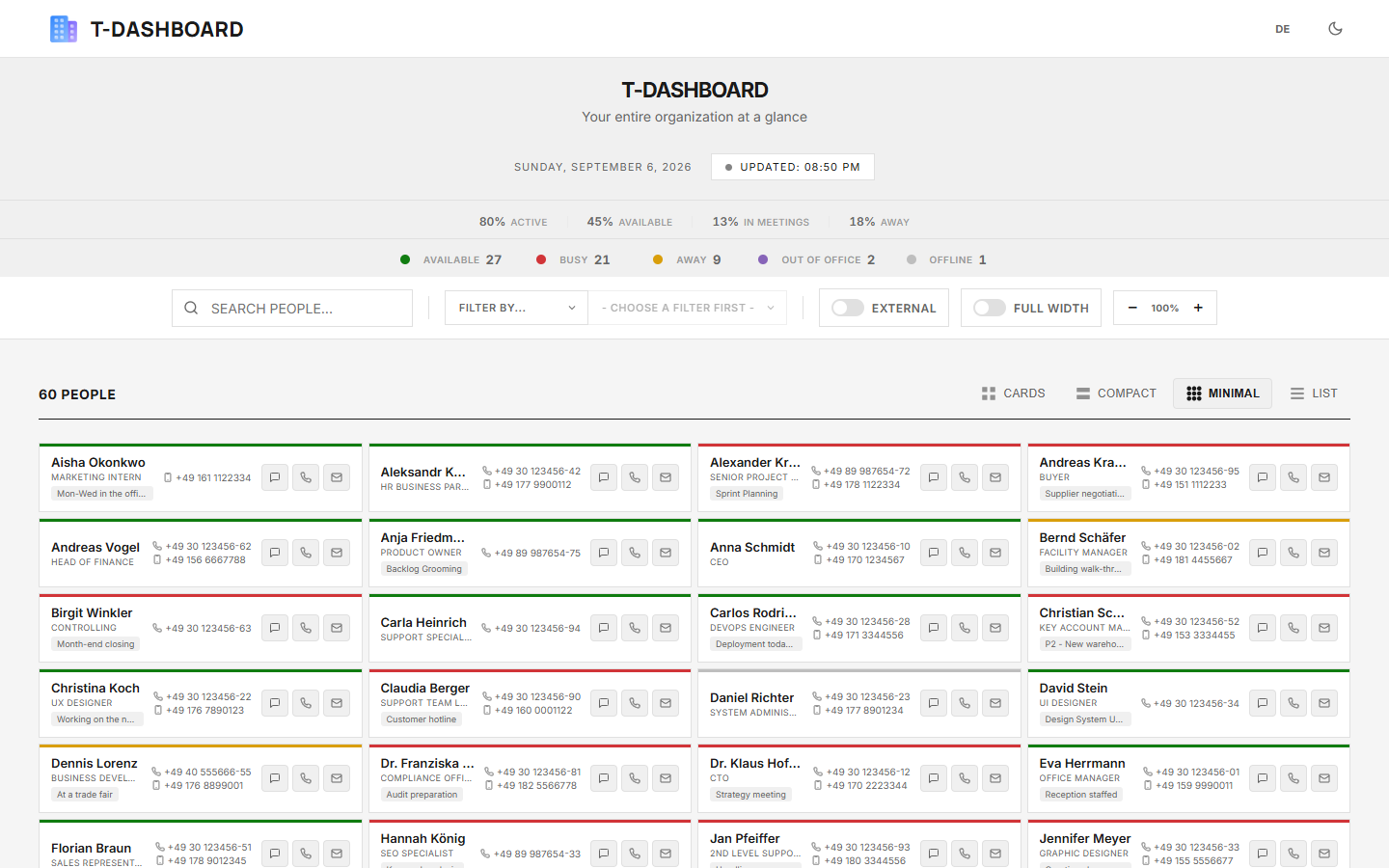 Minimal view
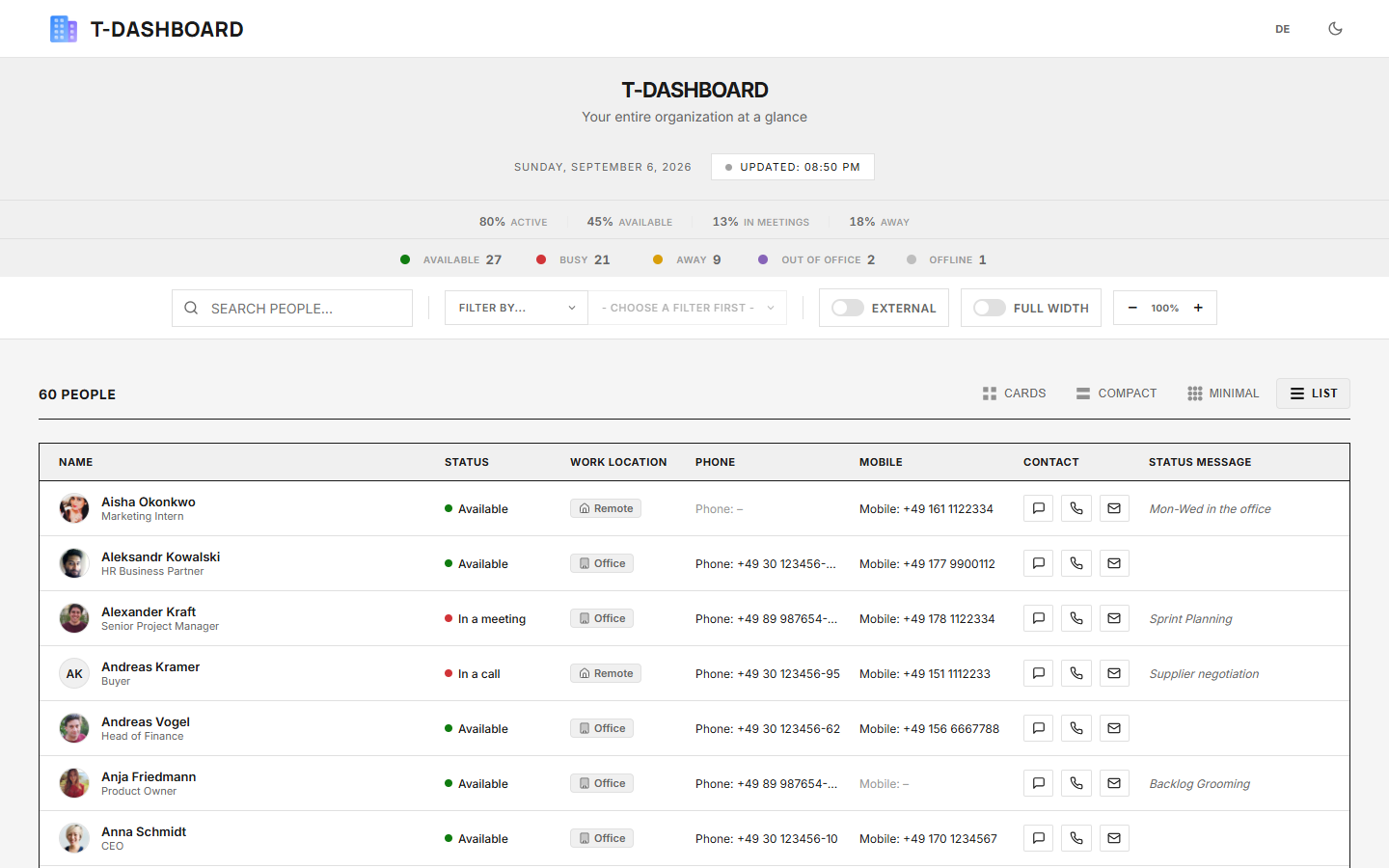 List view
Work location
If your organization maintains the work location in Microsoft 365 (Graph field workLocation),
TeamsDashboard shows directly who is in the office, working from home, or on the road.
- As a badge on every card and as a column of its own in the list view
- As a filter and as a grouping criterion in the smart filter
- Searchable via the search box
Ideal for hybrid teams and for planning on-site appointments.
Visibility groups
By default every signed-in user sees the whole organization. Optionally, visibility can be restricted to Microsoft 365 groups – a privacy advantage for larger or more strictly regulated organizations. Two things can be configured separately:
- Access group – who may use TeamsDashboard at all
- Visibility group – who is displayed
For example, a department only sees its own colleagues. The configuration is done by the
administrator in the customer portal. With active groups, the Graph permission
GroupMember.Read.All is additionally required.
Quick actions
| Action | What happens |
|---|---|
| Chat | Opens a Teams chat with the user |
| Teams | Starts a Teams call |
| Opens the email program | |
| Phone | Starts a call (clickable number) |
Statistics bar
At the top you see statistics in two areas:
Percentage banner:
- Active – percentage of available + busy
- Reachable – percentage with green status
- In a meeting – percentage in meetings
- Away – percentage away + out of office
Status bar: Clickable counters for every status (for filtering).
Other settings
| Setting | Description |
|---|---|
| Dark mode | Switch light/dark in the header |
| Full width | Expand the dashboard to maximum width |
| Zoom | UI scaling from 80% to 120% (with +/- buttons) |
All settings are saved in the browser and restored on the next visit.