
Admin onboarding
One-time setup by a Microsoft 365 administrator.
Time required: about 3 minutes including the data processing agreement. These steps only have to be done once.
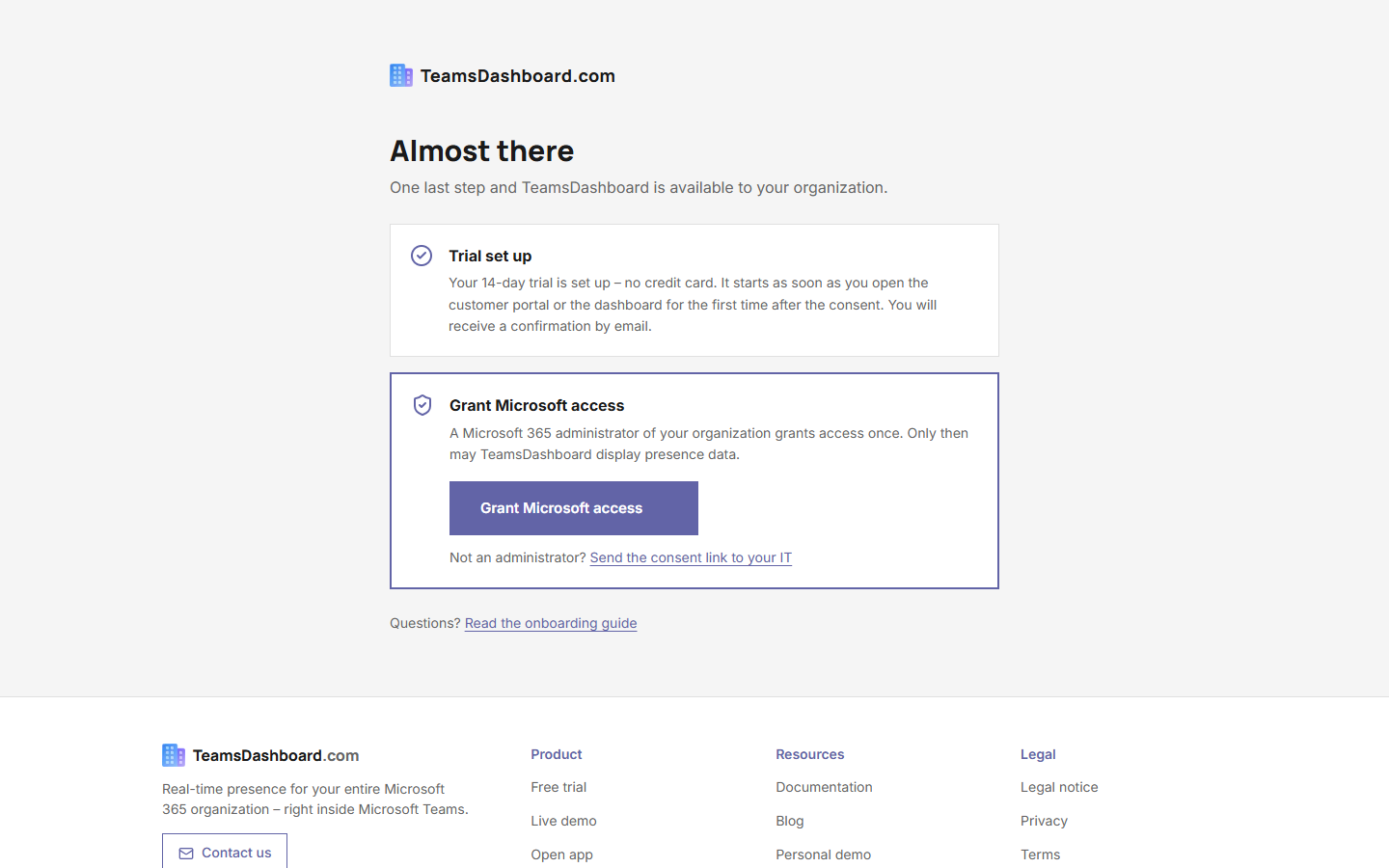 The page after starting the trial: one click starts the Microsoft consent
What is admin consent?
TeamsDashboard needs access to the user and presence data of your organization. As an administrator you grant permission once so that the app may read this data. After that, every employee of your organization can sign in.
The prerequisite is a started trial or a purchased license. After starting the trial or after the purchase (self-service or by invoice), the specified administrator receives an onboarding email with a personal consent link. Consent is granted exclusively via this link – it contains a secret, one-time proof. Merely signing in to the app is not enough.
Started the trial without an admin role? No problem: on the page after the start, below the consent button, there is the link “Send the consent link to your IT”. It sends the same personal link by email to an administrator, who grants consent in their own session. The data processing agreement in the customer portal also requires an administrator account.
Step-by-step guide
- 1Open the onboarding email
Open the welcome/onboarding email you received after starting the trial or after the purchase and click the consent link (alternatively the page teamsdashboard.com/en/welcome).
- 2Sign in with an admin account
Sign in with your administrator account (Global Admin or Application Admin). The link takes you to the Microsoft consent page.
- 3Review the permissions
Microsoft shows you the requested permissions. All of them are granted as delegated permissions – on behalf of the signed-in user, not as app-wide rights:
Permission Purpose User.Read.All Load the user list and profile information Presence.Read.All Retrieve the live status of users GroupMember.Read.All Only when visibility groups are used: resolve group membership Access to the TeamsDashboard API Proof that the sign-in happens through TeamsDashboard - 4Consent on behalf of your organization
Tick the checkbox “Consent on behalf of your organization” and click Accept.
- 5Sign the data processing agreement in the customer portal
Your consent is submitted. Then open the customer portal and sign the data processing agreement (DPA, Art. 28 GDPR) there once – it takes about a minute. Your sign-in to the portal activates your organization's access: the dashboard shows data, and every employee can sign in with their own account.
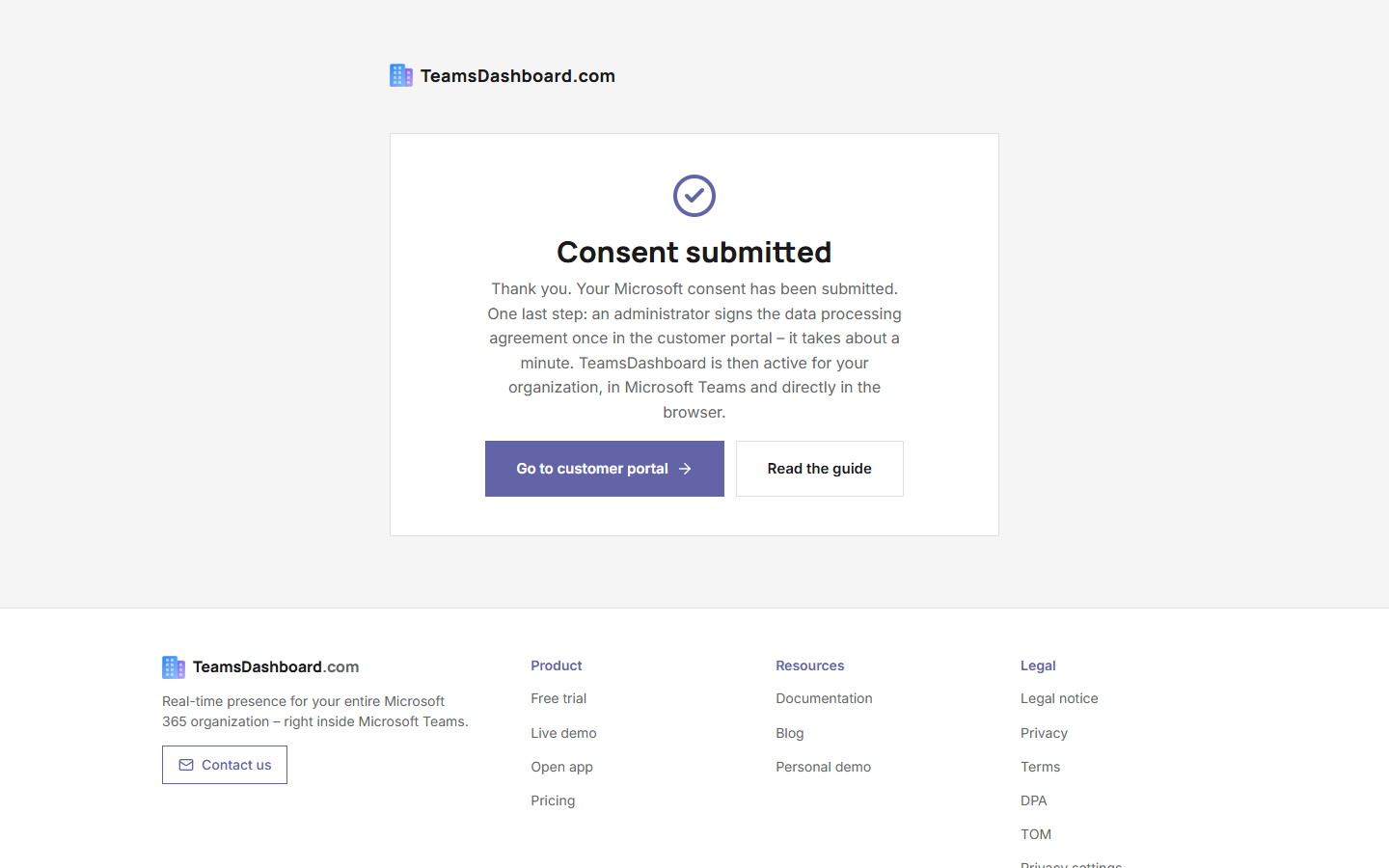 Consent submitted: the path leads to the customer portal
Frequently asked questions
Who can grant admin consent?
Users with one of the following roles:
- Global Administrator
- Application Administrator
- Cloud Application Administrator
Can I revoke the permissions later?
Yes. In the Azure portal under Enterprise applications → TeamsDashboard → Permissions you can remove the consent at any time.
Is data stored?
Employee and presence data is never stored server-side – all information is loaded directly from Microsoft Graph and only displayed in the browser of the respective user. Only contract and license data is stored server-side (company name, contact email, license size).
After onboarding
Let your employees know:
TeamsDashboard is now available!
Open teamsdashboard.com/app/ and sign in with your Microsoft account.
To make TeamsDashboard appear directly in Microsoft Teams as well, download the ready-made app package from the customer portal and deploy it once: → Deploy the Teams app.